🧾 給一般收銀員For booth cashiers
你在攤位負責:點單、TNG 掃碼收款、記錄顧客回饋、記用途,以及收攤前的庫存回報。現金和刷卡一律請客人到總收銀台。
At your booth you take orders, collect TNG QR payments, record customer feedback, record stock use, and report the stock count before closing. Cash and card always go to the central cashier.
開店Open登入、選自己的攤位Sign in, pick your booth
營業中During the day收銀 + 每位客人記回饋 + 試吃 / 開煮記用途Sell + feedback per customer + record samples / cooking
收攤前(截止 21:30)Before closing (due 21:30)交自己的回饋 + 全攤點庫存交一份Submit your feedback + one stock count per booth
下班Leave確認都交了 → 登出Check both are in → log out
① 收銀Selling
1登入系統Sign in
- 先輸入系統帳號密碼(由現場主管提供)。Enter the system account & password (given by your supervisor).
- 再用你個人的 4 位 PIN 登入,右上會顯示你的名字。Then sign in with your personal 4-digit PIN; your name shows top-right.
- 每次登入系統都會記錄(誰、幾點、哪台裝置)。Every sign-in is recorded (who, when, which device).
- 兩場展覽同時進行時,每一場有自己的系統帳號密碼,用哪一組登入,收的錢就算哪一場。新加坡場登入後,畫面最上方會有黃色「S$ SGD」標籤,價格都是新幣、QR 是 PayNow;沒看到這個標籤就是登錯場,請登出改用正確的帳密。When two shows run at the same time, each show has its own system account — the one you sign in with decides which show the sales go to. At the Singapore show a yellow "S$ SGD" tag appears at the top, prices are in S$ and the QR is PayNow. No tag = wrong show: sign out and use the right account.
🔒 PIN 是個人身份,請勿外借或寫在公開處,所有收款、回饋、盤點都會記在你名下。🔒 Your PIN is your identity — never share it. All sales, feedback and counts are recorded under your name.
● ● ● ●
1
2
3
4
5
6
輸入個人 PIN(示意)Enter your PIN (illustration)
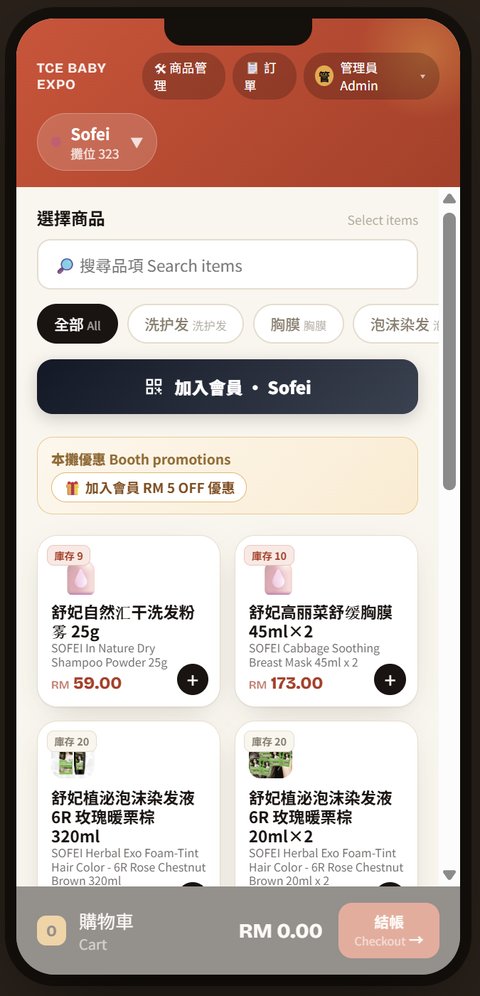
收銀畫面:上方品牌列(▼)可切換攤位Cashier screen — tap the brand bar (▼) to switch booths
2選攤位、點商品Pick booth & items
- 點上方品牌列(▼)切換攤位。記回饋和盤點前,一定要先確認切到自己的攤位。Tap the brand bar (▼) to switch booths. Before recording feedback or counting stock, make sure you are on your own booth.
- 點商品加入購物車;同一張單可跨多攤,系統自動分帳。Tap items to add; one order can span several booths — revenue is split automatically.
- 商品圖上方的小字是目前庫存;賣到 0 會顯示售完。回饋、庫存兩顆按鈕在商品清單最下面。The small tag above each picture is current stock; at 0 it shows sold out. The feedback and stock buttons are at the bottom of the list.
3開購物車 → 選付款方式Cart → payment
- 點畫面最下方的購物車列 → 確認品項 → 前往收款。Tap the cart bar at the bottom → check items → Go to payment.
- 📱 TNG / DuitNow 掃碼:出示本攤 QR → 客人掃碼 → 親眼看到客人手機上的「付款成功」(金額+時間) → 再按確認收款。📱 TNG / DuitNow QR: show the booth QR → customer scans → see the SUCCESS screen (amount + time) on their phone yourself → then confirm.
- 💵 現金 / 💳 信用卡:攤位不收。按「送單待付款」→ 把取餐號給客人 → 請客人到總收銀台付款,付完才交付商品(庫存已先預留)。💵 Cash / 💳 Card: not at the booth. Tap "Send to central" → give the customer the pickup number → they pay at central; hand over goods only after payment (stock is reserved).
掃碼付款不能只聽客人說已付,一定要看到成功畫面。有需要點的優惠(例如加入會員折價券)在結帳頁點一下才會生效。For QR, never take the customer's word for it — see the success screen. Opt-in promos (e.g. the member voucher) only apply after you tap them at checkout.
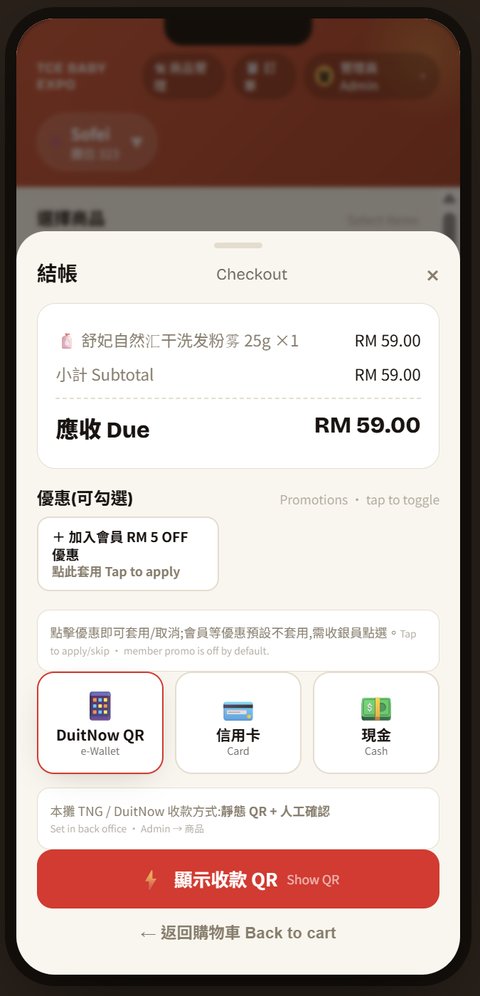
結帳畫面:DuitNow QR/信用卡/現金 + 優惠Checkout — DuitNow QR / Card / Cash + promos
② 顧客回饋(每個人記自己的客人、各交各的)Customer feedback (each staff records and submits their own)
4從哪裡進去Where to find it
- 商品清單最下面(滑到底)有兩顆按鈕:💬 Feedback 回馈 和 📦 Stock 库存,下面一行小字是今天的進度。At the bottom of the product list (scroll down) there are two buttons: 💬 Feedback and 📦 Stock, with today's progress underneath.
- 平常是白底;截止前 1 小時還沒交、過了截止、被主管退回時會變成實心並出現 ⚠,看到就點進去處理。They turn solid with ⚠ when less than 1 hour is left, the deadline has passed, or the supervisor returned it — tap to handle it.
- 回饋按鈕顯示的是你自己的進度(交了會顯示「✓ 我已交 時間」);庫存按鈕是整攤的,同攤有人交了會顯示「✓ 名字 已交」。The feedback button shows your own progress ("✓ Submitted" once you submit); the stock button is for the whole booth and shows who submitted it.
- 沒看到這兩顆 = 本場沒開這個功能,請找主管。Not visible = not enabled for this event; ask your supervisor.
🧋
泡沫奶茶RM 10.00☕
生活冰咖啡RM 3.50💬 Feedback 回馈3 customers · due 21:30
📦 Stock 库存⏰ 40 min left 剩
滑到商品最下面;庫存那顆變實心 = 快到截止Scroll to the bottom; solid = deadline close
① 试了哪些
✓ 水蜜桃爆爆珠
生活冰咖啡
② 客人怎么说
水蜜桃爆爆珠 ⭐ 最爱
😊 喜欢
😐 普通
🙁 不喜欢
💰太贵刚好便宜RM 5
🗨 Kids love it, but RM10 is a lot
③ 有没有买
🛍 买了
⏳ 下次买
✕ 没买
太贵太甜只是试吃…
④ 客人
👩 女👨 男儿童20–2930–39
Save & next 保存·下一位 →
一位客人的回饋(示意)One customer's feedback (illustration)
5記一位客人(邊聊邊點,約 30 秒)Record one customer (tap while you chat, ~30 s)
- 點 💬 Feedback 回馈 → + New customer 新增客人。Tap 💬 Feedback → + New customer.
- ① 試了哪些:點客人試吃 / 試喝的商品(可多選)。① What did they try: tap every product they tasted.
- ② 每一款:點 😊 / 😐 / 🙁;客人最喜歡的那款按 ☆ Favourite 最爱(每位最多一款);價格感受點「太貴 / 剛好 / 便宜」,客人有說願意付多少就填 RM;客人原話打在「客人原話」。② For each product: tap 😊 / 😐 / 🙁; mark their favourite with ☆ Favourite (one per customer); tap Too pricey / Fair / Cheap, type the RM they would pay if they said it, and type their own words.
- ③ 有沒有買:買了 / 下次買 / 沒買,再點原因(可多選)。這題品牌最想看,客人離開前問一下。③ Did they buy: Bought / Next time / Not buying, then tap the reasons. Brands care most about this — ask before they leave.
- ④ 客人:性別、年齡層用目測點選,不用問客人。④ Customer: gender and age by your own guess — don't ask.
- 按 Save & next 保存·下一位 接下一位(會沿用剛剛選的商品,其他答案清空);沒有下一位就按 ← Saved, back to list 存好,回清单(這只是存檔,還沒交出去)。Tap Save & next for the next customer (the products stay selected, answers are cleared), or ← Saved, back to list (this only saves — it is not submitted yet).
每一題都可以留空,不會擋提交。客人沒講就不要幫他填,空白就是空白。畫面會自動保存。Every question can be left blank. Don't fill in for the customer — blank means blank. It saves automatically.
不要記客人的姓名、電話。客人原話照客人說的寫,不要改成自己的話。Never record names or phone numbers. Write the customer's own words, not your summary.
6收攤前提交回饋(每個人交自己的)Submit feedback before closing (everyone submits their own)
- 回到回饋清單:還沒交的話最上面會有一條橘色「📤 還沒提交」提醒。按綠色的 📤 Submit 提交(或底部的 📤 提交今日回报)。Back on the feedback list: if you haven't submitted, an orange "📤 Not submitted yet" bar is at the top. Tap the green 📤 Submit (or 📤 Submit today at the bottom).
- 回饋是每個人一份:你的清單裡只有你自己接待、自己記的客人。同一攤有好幾個人,每個人都要交自己的,不會互相蓋掉。Feedback is per person: your list only has the customers you served and recorded. If several people work the booth, each of you submits your own.
- 今天完全沒取得回饋也要提交,選一個原因(沒有客人 / 太忙沒問 / 客人不願意 / 其他)。Got no feedback today? Still submit and pick a reason (no customers / too busy / customers declined / other).
- 按 ✓ Confirm submit 确认提交,會出現大大的「✅ 已提交」畫面,收銀畫面的回饋按鈕也會變成「✓ 我已交」。Tap ✓ Confirm submit; a big "✅ Submitted" screen appears and the feedback button on the till changes to "✓ Submitted".
- 交了才發現要改:按 ✎ Correct 更正,改完再提交一次(舊的會保留)。Need to change after submitting: tap ✎ Correct, edit, and submit again (the old version is kept).
- 昨天忘了交:上方日期選 Yesterday 昨天 補交,系統會標示為補交。Forgot yesterday: pick Yesterday at the top and submit — it is marked as late.
12接待
11有回馈
4买了
👤 你交的是你自己记的 12 位客人
同摊伙伴各自提交自己的回馈
同摊伙伴各自提交自己的回馈
✓ Confirm submit 确认提交
提交自己的回饋(示意)Submitting your own feedback (illustration)
③ 庫存:營業中記用途、收攤前點庫存回報(同攤誰都可以交,再交會存成新版本)Stock: record use, then the closing count (anyone on the booth can submit; resubmitting saves a new version)
7營業中:記用途(不是賣出去的都要記)During the day: record use (anything not sold)
- 點 📦 Stock 库存 → Record use 记用途 → 點商品。Tap 📦 Stock → Record use → tap the product.
- 選用途:🎁 網紅已發(已送出)/ 🍲 開煮(開了一整包)/ 🥄 試吃(開了包)/ 💔 損壞(要選破包、過期或其他)。收到補貨在「More 更多」裡的 📥 收貨。Pick the use: 🎁 Influencer (given away) / 🍲 Cooked (a pack opened for cooking) / 🥄 Sample (pack opened) / 💔 Damaged (pick broken / expired / other). New deliveries: 📥 Received under "More".
- 填數量 → ✓ Confirm 确认领用,庫存只扣一次(重複按不會扣兩次)。Enter quantity → ✓ Confirm — stock is deducted once (double taps don't double-count).
- 記錯了:在「今天已記錄」裡按 Undo 撤销(只能撤銷自己今天記的,其他請找主管)。Wrong entry: tap Undo in today's list (only your own entries from today; otherwise ask the supervisor).
為什麼要記:收攤時系統會用「開場 + 收貨 − 賣出 − 用途」算出應該剩多少。用途沒記,盤點就會對不上。Why: at closing the system works out what should be left as "opening + received − sold − used". Unrecorded use = the count won't match.
进益贡丸 300g 库存 9
🎁 网红已发
🍲 开煮
🥄 试吃
💔 损坏
− 2 +
✓ Confirm — deduct once 确认领用
開煮兩包貢丸(示意)Cooking two packs (illustration)
👥 同摊谁都可以交,每次提交都会留纪录 · 同摊也有填:BEE
蔥抓餅皮
−1 vs 系统 14 已复点
−1 vs 系统 14 已复点
13
进益贡丸
✓ 相符
✓ 相符
9
原味千寻
= 系统数 37 · 未确认 ✓ 数过相符
= 系统数 37 · 未确认 ✓ 数过相符
37
✓ Submit today 提交今日 →
灰色數字 = 系統預填、還沒確認(示意)Grey number = pre-filled, not yet checked (illustration)
8收攤前:點庫存回報(截止前完成)Before closing: stock count report (before the deadline)
- 點 📦 Stock 库存 → Daily count 收摊盘点。確認上方是自己的攤位、今天。Tap 📦 Stock → Daily count. Check it's your booth, today.
- 每一項已經預先填好系統算出的應剩數量(已扣掉今天所有訂單和用途),數字是灰色的。Every item is pre-filled with what the system expects (after today's orders and usage), shown in grey.
- 實際數一遍架上和箱子裡可以賣的數量:
· 一樣 → 按 ✓ Checked 数过相符,數字變黑色。
· 不一樣 → 點數字改成你數到的,系統馬上算出差多少。再點一下原因:Recounted 已复点(數了兩次都一樣)或 Not sure yet 尚未查明。 Count what is sellable on the shelf and in boxes:
· Same → tap ✓ Checked; the number turns black.
· Different → tap the number and type your count; the difference shows right away. Then tap Recounted (counted twice, same result) or Not sure yet. - 發現破掉、過期的,先到 Record use 记用途 記 💔 損壞,再回來盤點。Found broken or expired items? Record them as 💔 Damaged in Record use first, then count.
- 按 ✓ Submit today 提交今日 →,會跳出確認框:提醒同攤還有誰也填過,以及還沒確認的項目會照系統數提交。確定後按 ✓ Yes, submit 确认提交。
交了之後發現要改(或換人顧攤):任何人都可以按 ✎ Edit & resubmit 修改后重新提交,改完再交一次。系統會存成第 2 版、第 3 版,舊的都保留,主管確認的是最新那一版。Tap ✓ Submit today →. A confirm box shows who else filled it in, and that unchecked items will be submitted with the system number. Then tap ✓ Yes, submit.
Need to change it after submitting (or the booth changed hands)? Anyone can tap ✎ Edit & resubmit and submit again. It's saved as version 2, 3… — older versions are kept, and the supervisor confirms the latest one.
預填只是方便,不是不用數。沒按「數過相符」就提交的項目,主管那邊會看到「照系統數(PT 未改)」。Pre-filling saves typing — it doesn't mean you skip counting. Items submitted without "Checked" show as "system number, not changed by staff" to the supervisor.
9提交之後:等主管確認After submitting: supervisor review
- 狀態變成 Waiting for supervisor 待主管确认;主管確認後變成 Approved 已确认。Status becomes Waiting for supervisor, then Approved once confirmed.
- 被退回(按鈕變實心 ⚠ Returned 退回补正):只改紅框的那幾項,看主管寫的說明,改好再提交一次。Returned (solid ⚠ Returned): fix only the red-framed items following the supervisor's note, then submit again.
- 提交後又有人買東西或記用途,會出現「請重新提交」:回到盤點畫面再交一次(照系統數的項目會自動跟著更新)。If sales or usage happen after you submit, you'll see "please resubmit": open the count again and resubmit (system-number items update automatically).
- 主管也可能直接幫你改數字並註明原因,你在盤點畫面看得到「主管改为…」。The supervisor may correct a number with a reason — you'll see "Supervisor changed …" on your count screen.
📦 Stock 库存✓ BEE 已交 21:12 · 待主管确认
📦 Stock 库存⚠ Returned 退回补正
已交(虛線)/ 被退回(實心)Submitted (dashed) / returned (solid)
✅ 一般收銀員:下班前檢查清單Booth cashier: before you leave
- ☐ 今天的試吃、開煮、網紅、損壞都記了用途☐ All samples, cooking, influencer gifts and damage recorded
- ☐ 💬 自己的回饋已提交(按鈕顯示「✓ 我已交」)☐ 💬 Your own feedback submitted (button shows "✓ Submitted")
- ☐ 📦 收攤盤點已提交(每攤一份,同攤講好由誰交),沒有 ⚠ 退回☐ 📦 Daily count submitted (one per booth — agree who submits), nothing returned
- ☐ 送去總收銀台的單都付了☐ All orders sent to central are paid
- ☐ 登出(右上自己的名字 → 登出)☐ Log out (your name, top-right → Log out)
💰 給總收銀員For the central cashier
集中收現金和刷卡、代收攤位送來的單、退款,以及開班 / 關班點鈔。也可以像一般收銀員一樣切換攤位幫忙結帳。
Central collection of cash and card, settling orders sent by booths, refunds, and opening / closing the cash shift. You can also switch booths and sell like a booth cashier.
開場Open登入 → 開班(點備用金)Sign in → open shift (count float)
營業中During the day叫號代收、退款Collect by pickup number, refunds
收攤前Before closing待收款清空、提醒各攤交回饋和盤點Clear unpaid orders, remind booths to submit
下班Leave關班點鈔 → 交給管理員結算Close & count → hand over to admin
1登入:手機和平板看到的畫面不一樣Sign in: phone vs tablet
- 用自己的 PIN 登入,會直接進收銀畫面(不用先選攤位)。Sign in with your PIN — you go straight to the till (no booth picker).
- 手機:商品格最上面有一顆大的 💵 待收款 N 筆 · RM,有單時是紅色,攤位一送單數字就自動更新。Phone: a big 💵 N awaiting · RM button sits at the top of the grid; it turns red and updates live when booths send orders.
- 平板橫放 / 電腦:左邊有收款欄 💵 收款台叫號代收,右邊是待收款清單。建議用平板橫放,最順手。Tablet in landscape / laptop: a left sidebar with 💵 Collect and the unpaid list on the right. A landscape tablet works best.
🧋
泡沫奶茶RM 10.00☕
生活冰咖啡RM 3.50手機版:最上面的待收款按鈕(示意)Phone: the collect button at the top (illustration)
🔎 102
叫出
#102 21:04
Pinfood · BEE
贡丸汤×2、葱抓饼×1RM 23.00
💵 收款
Pinfood · BEE
贡丸汤×2、葱抓饼×1RM 23.00
💵 收款
2代收攤位送來的單Collect orders sent by booths
- 客人拿取餐號來 → 手機按 💵 待收款(平板直接看左邊)。Customer brings a pickup number → on the phone tap 💵 Collect (on a tablet, use the left side).
- 在清單點那張單,或在上方輸入取餐號 → 叫出。找不到會在下面提示(可能剛送出還沒同步,等幾秒再試)。Tap the order in the list, or type the pickup number → Find. If not found you'll see a note (it may still be syncing — retry in a few seconds).
- 收款畫面可以改數量、加品項、套折價券,再選 📱 QR(新加坡 PayNow / 馬來西亞 DuitNow:按「產生 QR」→ 客人掃碼,付款由系統自動確認,不用看客人手機)、💳 刷卡或 💵 現金收款。QR 取消後單子還在,可以改收現金或刷卡。On the collect screen you can change quantities, add items, apply vouchers, then take 📱 QR (PayNow in Singapore / DuitNow in Malaysia: tap "Show QR" → customer scans → payment confirms automatically), 💳 card or 💵 cash. Cancelling a QR keeps the order, so you can switch to cash or card.
- 付完款攤位就可以交貨;營收在收款時才算。Once paid the booth hands over the goods; revenue counts at payment.
大部分優惠會自動折抵。加入會員折價券、會員價這類要點一下才生效,客人符合就主動幫他點。折價券有最低消費,沒到就不會出現,這是正常的。Most promos apply automatically. Member voucher / member prices must be tapped — do it when the customer qualifies. Vouchers with a minimum spend simply don't appear below it.
只看得到本場展覽的單;要看全部(含已收款)按上方 📋 訂單。Only this event's orders are shown; for everything (incl. paid) tap 📋 Orders.
3開班與關班點鈔Open & close the cash shift
- 開場:手機按 💵 待收款(平板看左邊收款台),最上面紅色那條寫「🔴 還沒開班」→ 按 開班 → 點錢櫃裡的備用金、輸入金額 → 開班。有開班才能收現金,一天開一次。Opening: tap 💵 Collect on the phone (or look at Collect on the left of a tablet). The red bar at the top says "No cash shift" → tap Open → count the float in the drawer and enter it. You need an open shift to take cash; once a day.
- 下班:同一個位置變成綠色「🟢 現金班開班中」→ 按 關班點鈔 → 看應有現金(備用金+現金銷售−現金退款+進出零用)→ 點實際鈔票輸入 → 有差異要寫原因 → 按兩次關班。Closing: the same bar turns green "Cash shift open" → tap Close & count → check Expected (float + cash sales − cash refunds + pay-ins/outs) → count and enter the cash → explain any difference → tap Close twice.
還沒開班時,手機的待收款按鈕下面會出現「⚠ 還沒開班」;這時客人付現金會跳出紅色提示,刷卡和 QR 不受影響。Without an open shift the phone's collect button shows "⚠ No cash shift"; cash payments are refused with a red message, card and QR still work.
| 開帳Opening | RM 100 |
| 現金銷售Cash sales | RM 1,250 |
| 應有現金Expected | RM 1,350 |
| 實點Counted | RM 1,348 |
| 差異Variance | −RM 2 |
關班Close shift
4跨品牌、退款、作廢Cross-brand, refunds, voids
- 跨品牌:一張單含好幾攤,一次收款,系統自動分給各攤。Cross-brand: one order across booths, one payment, split automatically.
- 退款:按上方 📋 訂單 → 找到那張單 → ↩ 退款 → 選全額或部分(輸入金額)→ 選原因 → 全額:「退回庫存」預設已勾(整張單的數量加回庫存),商品沒拿回來、或壞掉不能再賣才取消勾選;部分:在「退回庫存(選件數)」按 + 選客人退回、還能再賣的件數(沒拿回來維持 0)→ 按兩次確認。營收會自動沖回。Refund: tap 📋 Orders → find the order → ↩ Refund → choose full or partial (enter the amount) → pick a reason → full: "return to stock" is ticked by default (all items go back to stock); untick it only if the goods did not come back or cannot be resold; partial: under "return to stock (pick quantities)" tap + for each returned, resellable item (leave 0 if not returned) → confirm twice. Revenue is reversed automatically.
- 退錢給客人:現金從錢櫃拿(會從應有現金扣掉);刷卡要在刷卡機上另外退、QR 要另外轉回,系統只記帳。Paying back: cash comes out of the drawer (expected cash goes down); card refunds are done on the card terminal and QR refunds by transfer — the system only records them.
- 作廢:還沒付款的單在訂單列表按 取消 → 確認取消,預留的庫存自動退回。Void: for an unpaid order tap Cancel → Confirm in the order list; reserved stock returns automatically.
5幫忙盯各攤的回饋和盤點Keep an eye on booth reports
- 每天截止前(預設 21:30)要交:💬 顧客回饋 — 每個工作人員各交一份;📦 收攤盤點 — 每攤一份。做法見「給一般收銀員」第 4–9 步。Before the deadline (21:30 by default): 💬 feedback — one per staff member; 📦 daily count — one per booth. See steps 4–9 in "Booth cashier".
- 主管可在後台「🗓 回報時間表」看每攤每個人交了沒(例如「交 2/3 人」)。快截止還沒交,請提醒。Supervisors can see in "🗓 Timeline" who has submitted at each booth (e.g. "2/3 people"). Nudge anyone who is late.
✅ 總收銀員:下班前檢查清單Central cashier: before you leave
- ☐ 💵 待收款清空(付了或作廢)☐ 💵 No unpaid orders left (paid or voided)
- ☐ 每個工作人員的回饋、每攤的盤點都交了☐ Everyone's feedback and every booth's count are in
- ☐ 關班、點鈔,差異有說明☐ Shift closed, cash counted, variance explained
- ☐ 通知管理員可以結算封帳☐ Tell the admin the day is ready to settle
- ☐ 登出☐ Log out
📎 附錄Appendix
主管確認庫存日報,以及管理員的每日結算。
Supervisor stock review and the admin's daily settlement.
🧑💼 主管:確認庫存日報與回饋Supervisor: stock review & feedback
- 後台 📦 庫存日報:每攤一張卡,標出差異、照系統數、同攤有誰填過。點卡片看明細,預設只列「要處理」的商品。Back office 📦 Stock review: one card per booth showing variances, system-number items and who filled it in. Tap a card; by default only items that need attention are listed.
- 有差異的商品選一個:± 調整庫存 / 📝 不調整,寫原因 / ✎ 代改實點(要寫原因,PT 看得到)/ ↩ 退回 PT,最後按 ✓ 確認。上方有「下一攤待確認 →」。For each variance choose ± Adjust stock / 📝 No adjustment, note why / ✎ Edit count (reason required, staff can see it) / ↩ Return to staff, then ✓ Approve. Use "Next booth →" at the top.
- 標「照系統數(PT 未改)」的項目是 PT 沒親手確認的,有疑慮可以退回請他數。Items tagged "system number (not changed by staff)" weren't confirmed by hand — return them if in doubt.
- 重複提交:同攤誰都可以再交,每次都存成新版本(卡片上會寫「交 N 次」)。主管看到、確認的是最新那一版,舊版在明細的「📜 版本紀錄」裡都留著;已確認後有人再交,會回到「待確認」。有人改到一半還沒交,卡片會顯示「✎ 某某 修改中」。Resubmissions: anyone on the booth can submit again; each one is saved as a new version (the card shows "submitted N times"). You review the latest version; older ones stay under "📜 Versions". A resubmission after approval goes back to "waiting". If someone is editing but hasn't submitted, the card shows "✎ name editing".
- 補記用途到過去的日子(只有主管 / 管理員):收銀畫面「📦 庫存」→ 日期選昨天(或其他日子)→ 照平常記網紅、試吃、開煮等,按鈕會寫「✓ 補記到 MM/DD」,會算在那天,那天的應剩和隔天開場自動更新。那天的盤點如果已經確認,要先在庫存日報「重開」;確認時如果已經用「調整庫存」處理過同一筆差異,就不要再補記(會重複扣)。Backfill usage to a past day (supervisor / admin only): in the till's "📦 Stock", pick yesterday (or another day) and record influencer / sampling / cooking as usual — the button says "✓ Backfill to MM/DD". It counts on that day, and that day's expected stock and the next day's opening update automatically. If that day's count is already approved, reopen it first; if the difference was already handled with "Adjust stock", don't backfill it again (it would be deducted twice).
- 📋 今日回報:一頁看完今天各攤盤點(還沒交 / 待確認 / 已確認)和每個人的回饋(交了沒、記了幾位;今天有上班但還沒開始的也會列出)。按 📋 複製提醒訊息 自動產生群組提醒文字,直接貼上;待確認的攤位按「去確認 →」直接進明細。確認一攤後會自動跳到下一攤待確認。📋 Today: one page for every booth's count (not submitted / waiting / approved) and each person's feedback (submitted or not, how many customers; people on duty who haven't started are listed too). 📋 Copy reminder builds the group message for you; "Review →" opens a waiting booth. After you approve one booth it jumps to the next one waiting.
- 🗓 回報時間表 → 👤 誰交了什麼:選日期,看每個人那天交了哪些攤的盤點 / 回饋、幾點交的,用來確認是不是都有交。🗓 Timeline → 👤 By person: pick a day to see which booths each person submitted (stock / feedback) and when — use it to check everyone has submitted.
- 🗓 回報時間表看每天每攤幾點交、誰交、是否補交(回饋會顯示「交 2/3 人」,滑過去看每個人);💬 回饋最上面的 📊 品牌報告可以下載給品牌、列印成 PDF。🗓 Timeline shows when and by whom each booth submitted; 📊 Brand report at the top of 💬 Feedback can be downloaded for brands or printed to PDF.
- 手機按返回會一層一層退回上一步,不會跳出系統。The phone's back button steps back one level at a time — it won't exit the system.
🔒 管理員:每日結算Admin: daily settlement
- 開場:到 營運 (Ops) 確認營業日是今天,當天訂單、回饋、盤點都歸到這一天。Opening: in Ops, make sure the business day is today — orders, feedback and counts go to this day.
- 收尾:確認總收銀員關班點鈔、各攤盤點已確認 → 到 結算 看各品牌營收 / 退款 / 淨額 → 按 結算並封帳。Closing: make sure central has closed & counted and booth counts are approved → in Settlement review each brand's gross / refunds / net → Close & lock.
- 封帳後當天的訂單、退款、庫存調整都不能再改;要更正先解鎖,改完再封。封帳是撥款依據,確認金額再按。After locking, that day's orders, refunds and stock adjustments are frozen; unlock to correct, then lock again. Locking is the basis for payout — check the numbers first.
- 報表可匯出 CSV / Excel / PDF。Reports export to CSV / Excel / PDF.
| 品牌Brand | 營收Gross | 退款Refund | 淨額Net |
|---|---|---|---|
| Pinfood | 1,200 | 0 | 1,200 |
| Nulife | 860 | 20 | 840 |
結算並封帳Close & lock